Python Reference Sheet
Table of Contents
References
Installation Guide
Python Class summary
references
Files from my class
More sample files
How to use Python to create IOS apps
Installation guide
Notes and Warnings:
All the software is free, but first you must disable Windows S if you haven't already
If you have multiple user accounts on your Windows machine, please install on the account you will be using this on
Also, things change in the Python world and your screens may look a little different than below
Install VSC (Visual Studio Code)
VSC install link
warning: this will automatically download the install file, if it doesn't, click on 'direct download link'
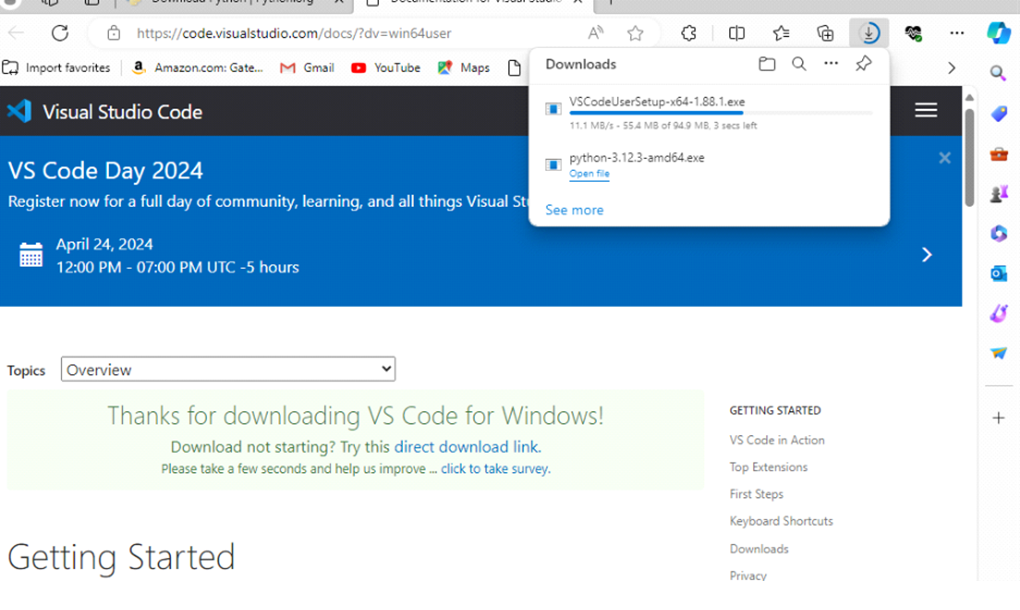
Go to your downloads folder and double click on the file just downloaded, and this screen will pop up
click to Accept then keep clicking Next until the next screen after this
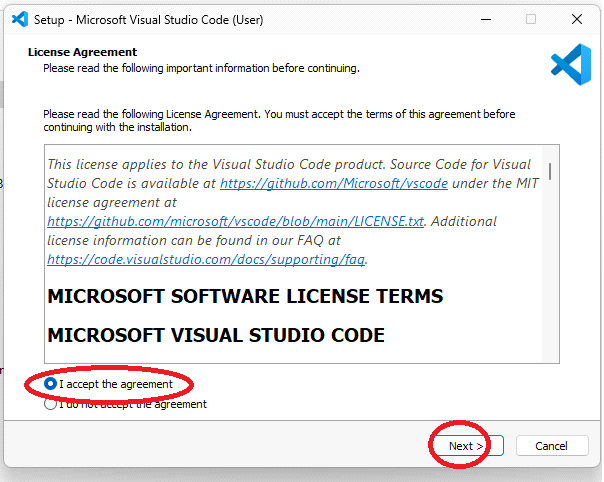
keep the 2 defaults checked, click next again
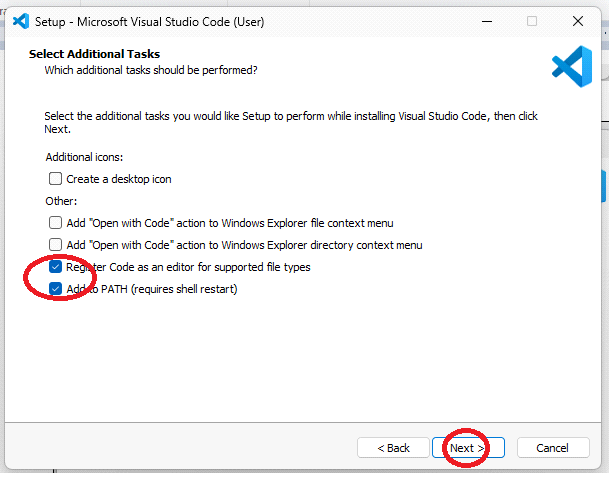
click Install and it will install
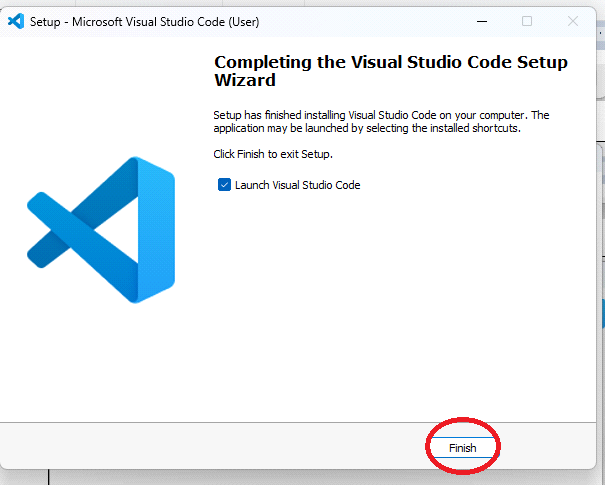
click Finish and launch into VSC
VSC pulls up
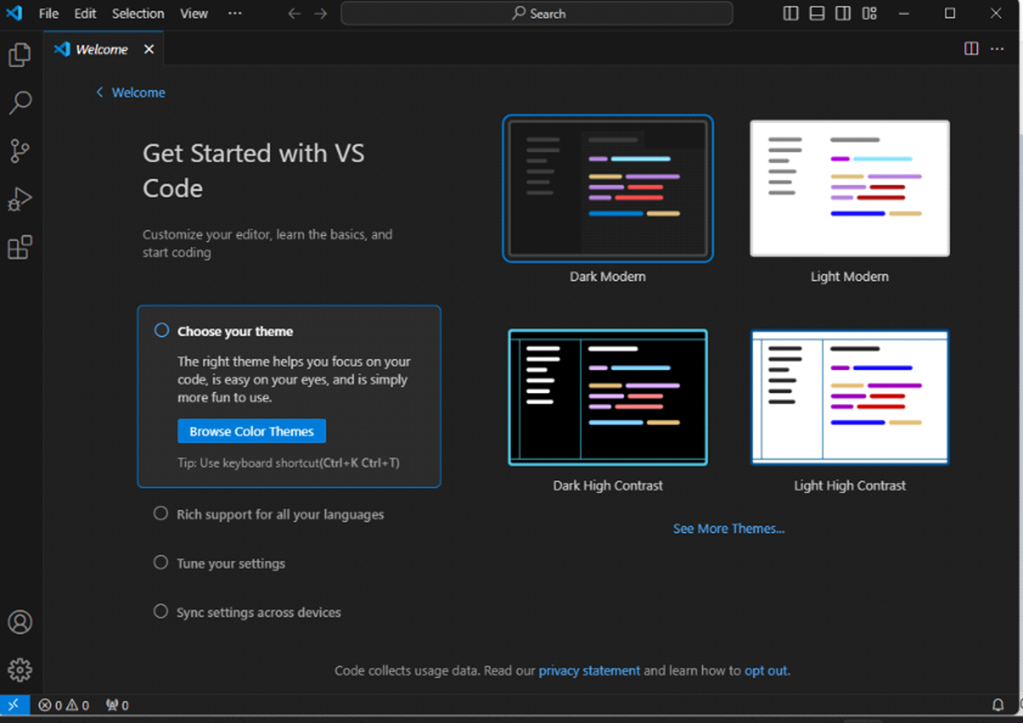
Note: I would suggest leaving this up, so its ready to go in subsequent steps
Install Python and Pygame
Python 3.12.3 install link
note: this will download Python right away
please go to your Download folder and double click on it to launch it
You will see the following screen (or something similar)
Please check the 2 checkboxes at bottom, then click on Install Now
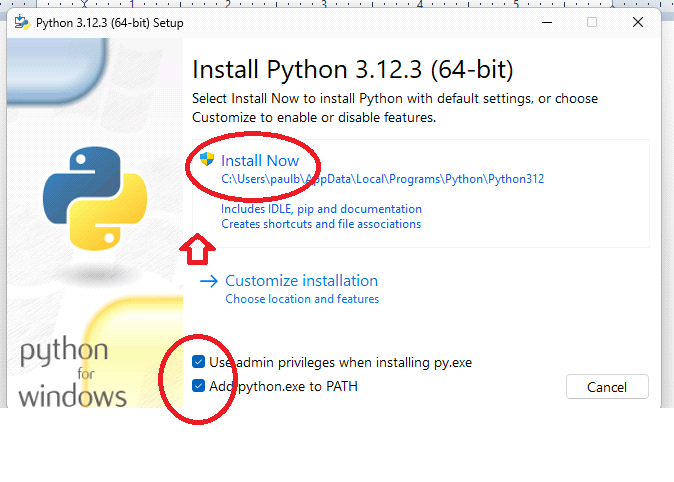
you may get a verify popup from windows, if you do, say yes to it
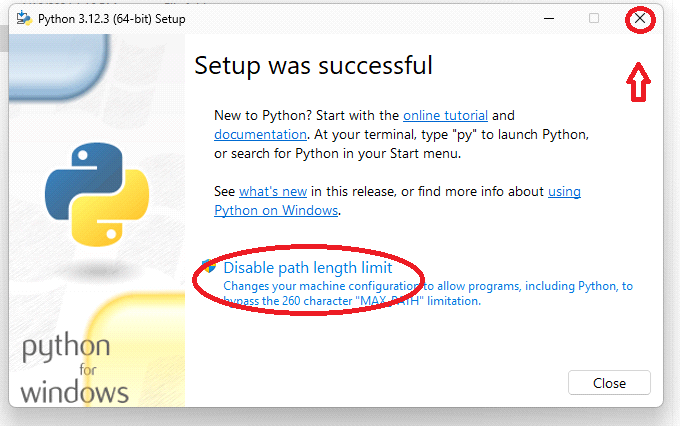
then you will see
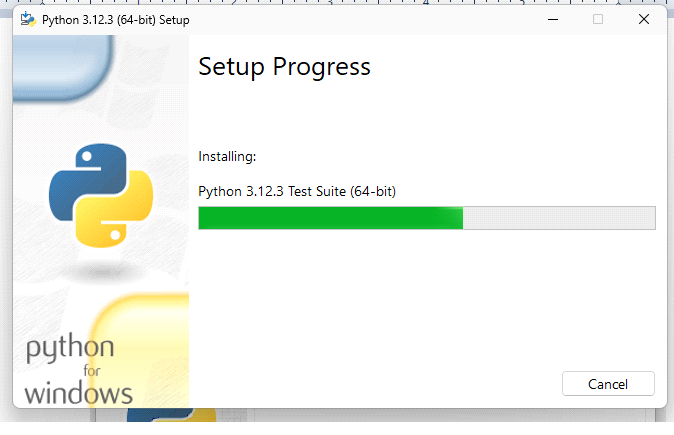
after a few minutes you may see this, if so, please click on Disable path length limit, then click X to close box
note: you may get another verify box after you click on Disable..., if you do, say yes to it
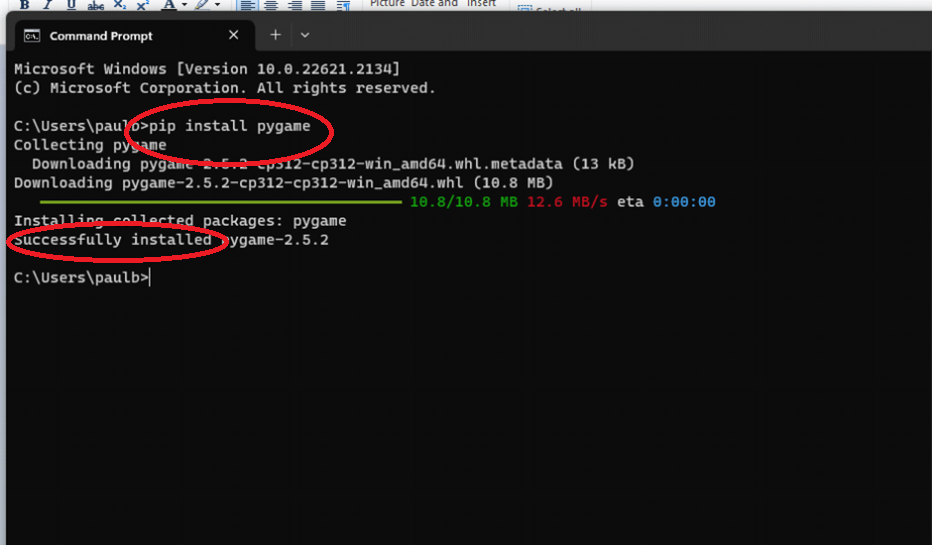
goto command prompt, type this command
pip install pygame
you should see the below
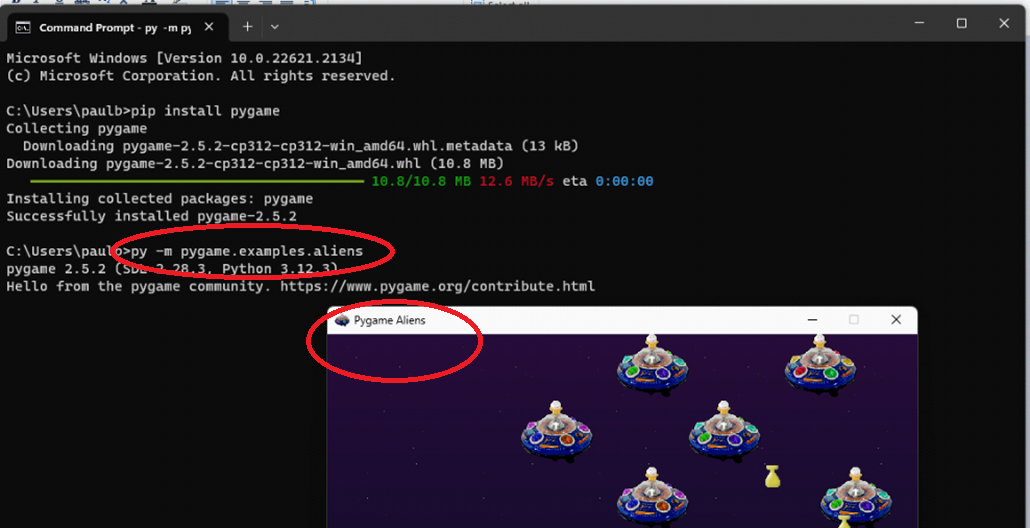
now type the following command
py -m pygame.examples.aliens
you will see the game pop up as shown
Install Python plugin on VCS then try some Python programming!
First, create the VSCPython folder in your documents folder
e.g. C:\Users\paulw\Documents\VSCPython
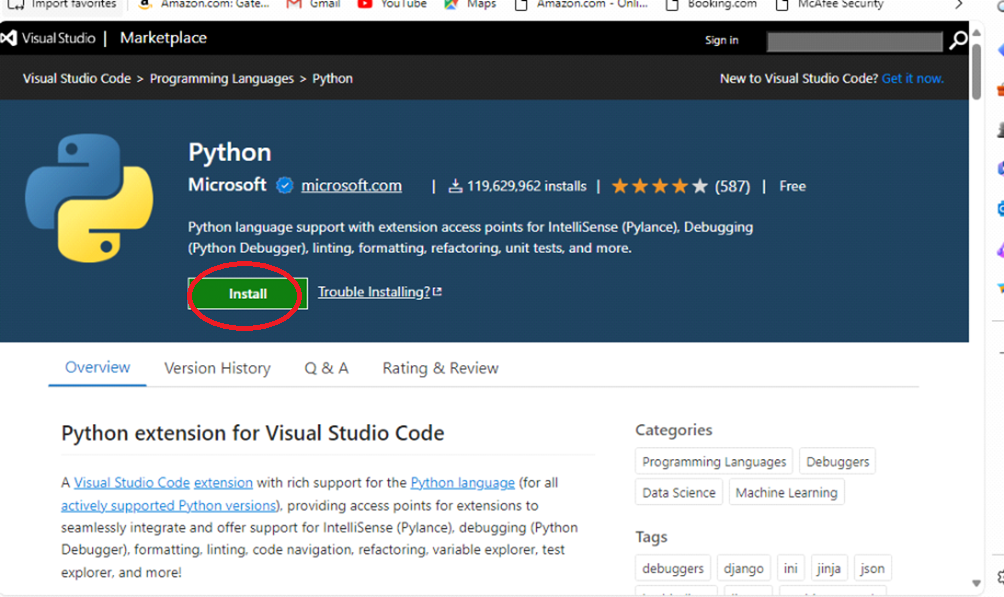
Click on this link
Python Plugin install link
click on install button on the page that comes up
click continue
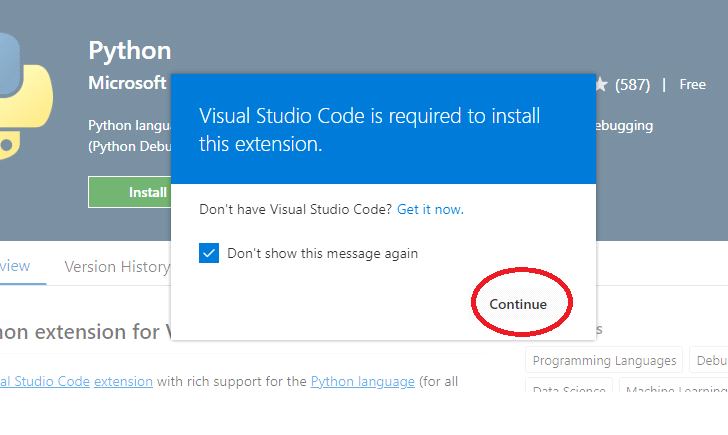
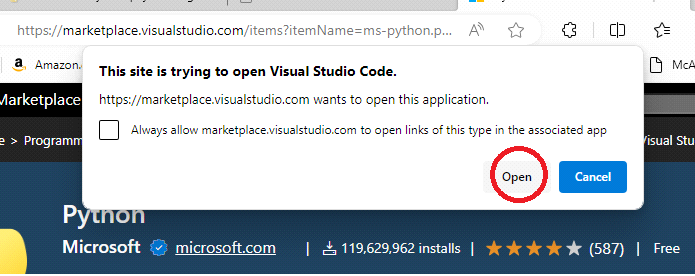
click Open
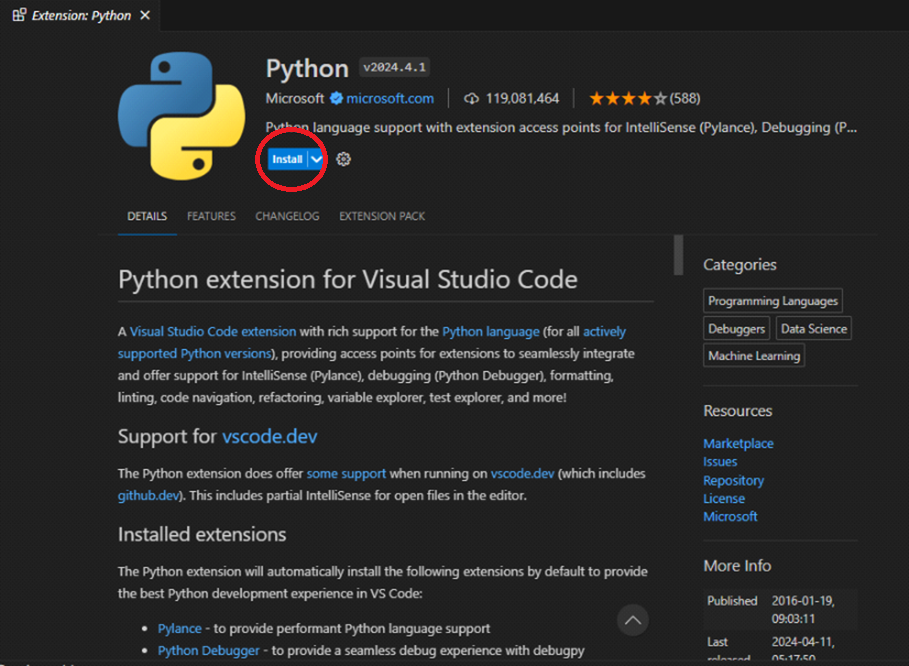
click on install button shown once VSC pops up with this screen
button changes to “Installing”
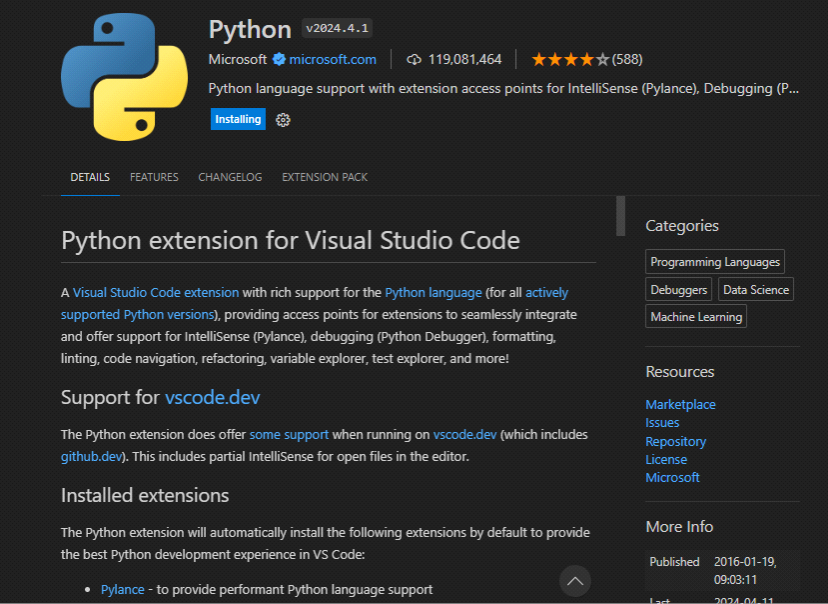
after about 2 minutes (no progress bar), it pops you into welcome screen or another screen if you were already using VSC previously
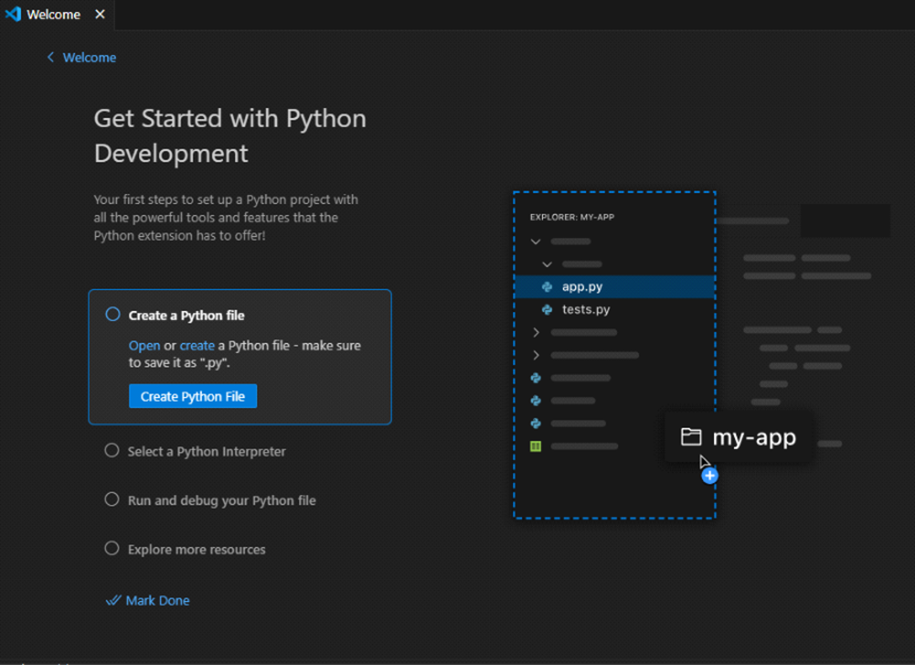
click on Explorer icon on left-hand side
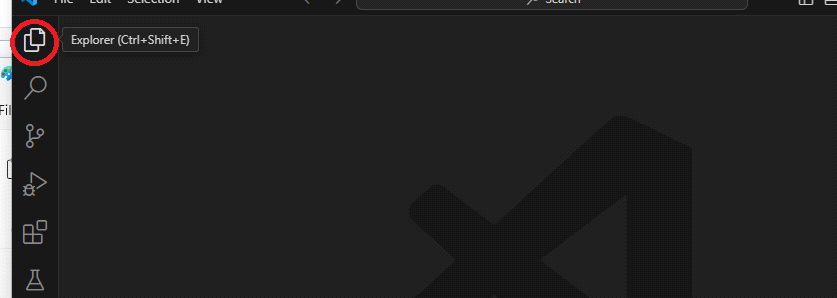
If you see a blue "Open Folder" button
click on it
drill to the VSCPython folder you created earlier and click Select Folder
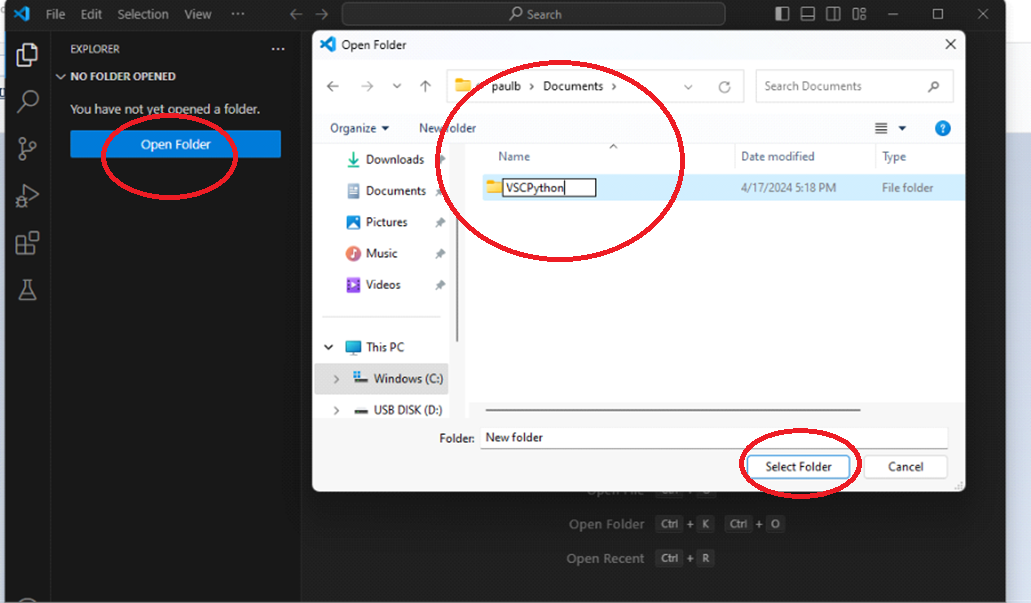
If you don't see it (like if you were in another project like JavaScript)
click on File, then Open Folder, and then drill to your folder like the screenshot below
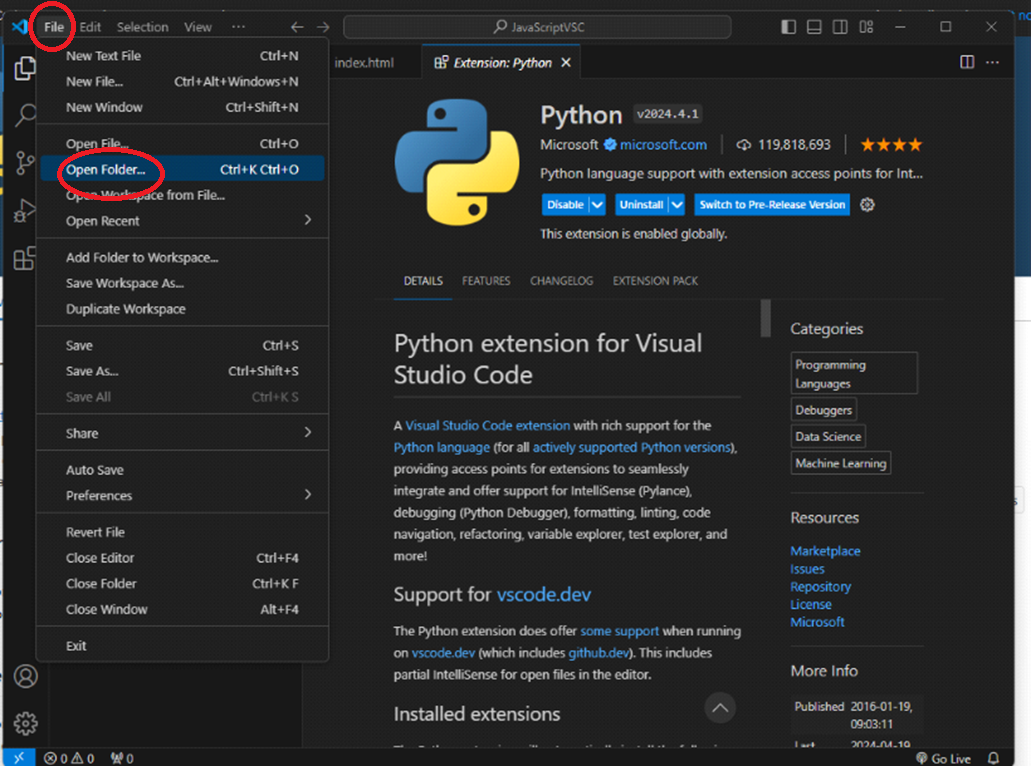
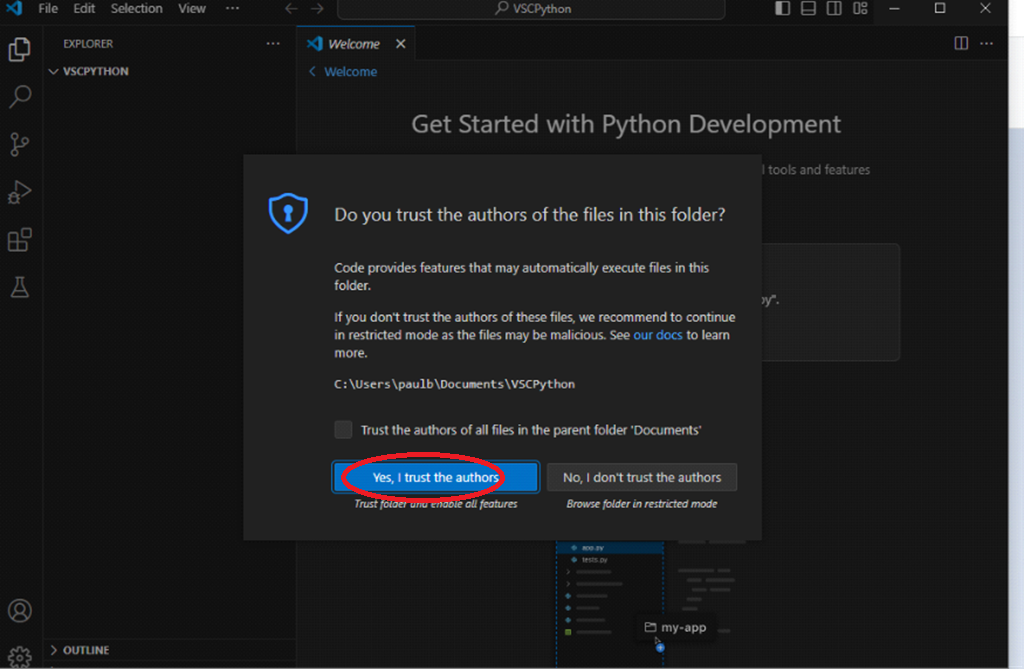
click on "Yes I trust the authors"
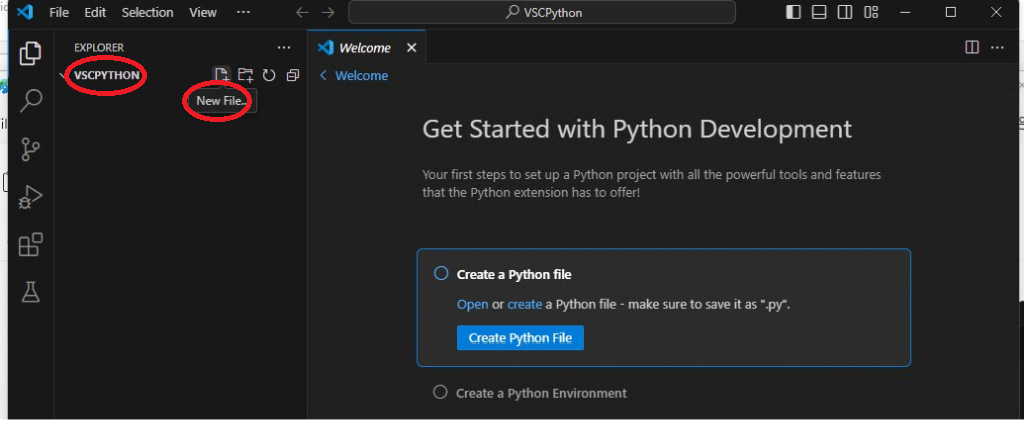
mouse over the folder name in the explorer pane, and click on New File icon
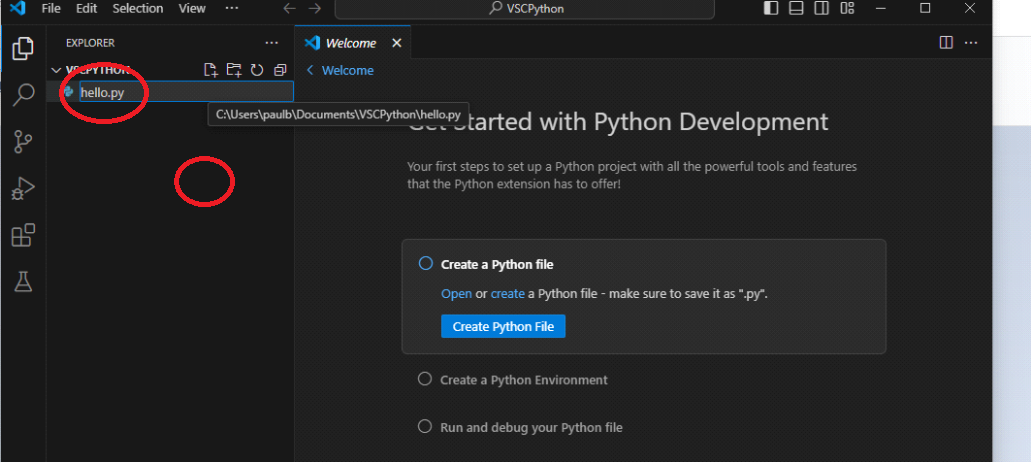
type in filename of hello.py, then click outside of it, start typing code
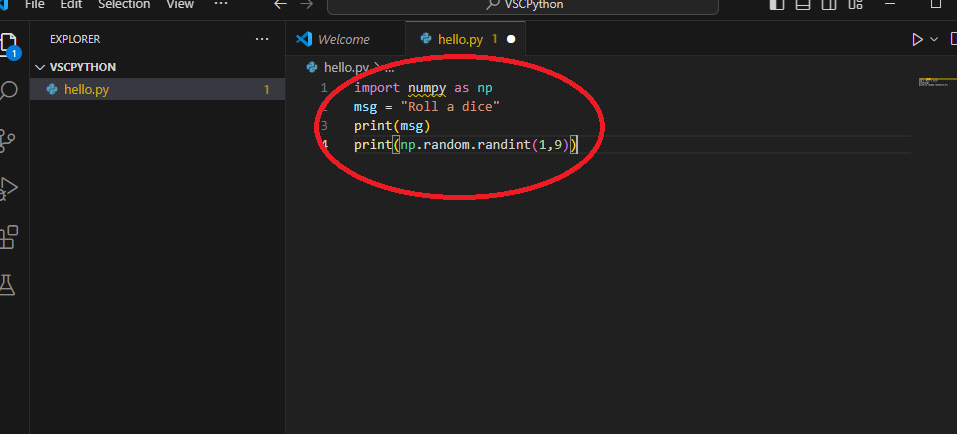
type this code into editor pane on the right-hand side (with no indentation)
import numpy as np
msg = "Roll a dice"
print(msg)
print(np.random.randint(1,9))
click on play button in upper right-hand corner
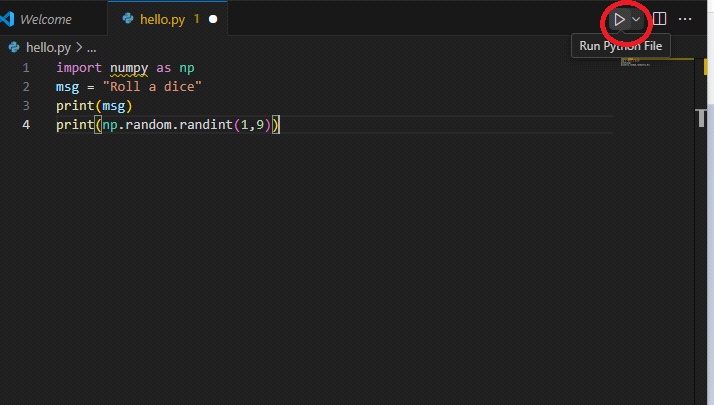
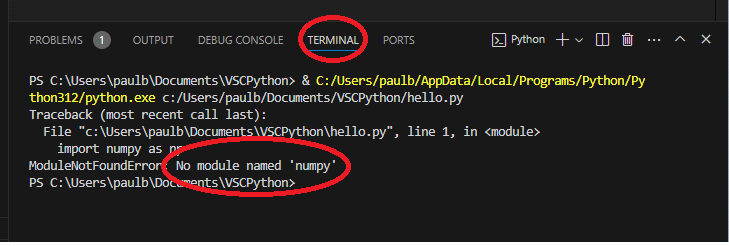
Unfortunately, this doesn't work because the numpy package doesn't exist. :)
Please see the terminal output at bottom.
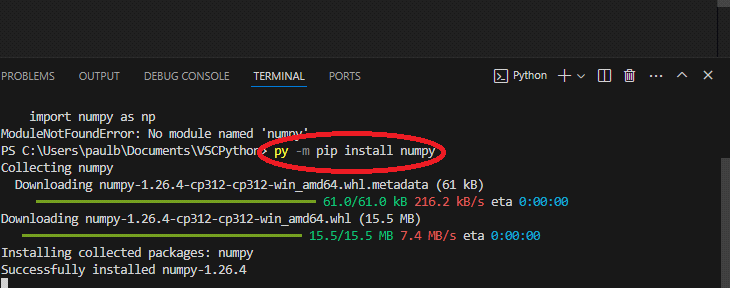
In that same terminal, type this command to install it
py -m pip install numpy
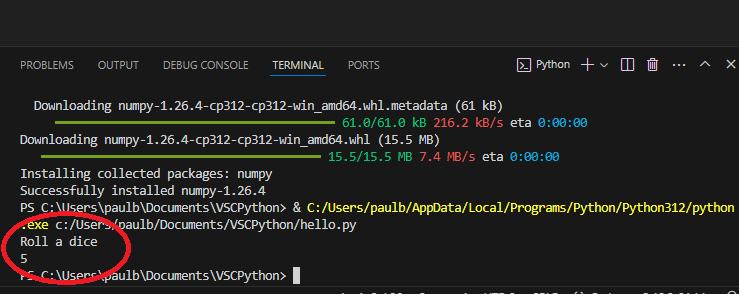
now hit play again and it should work - output will show up in terminal
Python Class Summary
intro - little history about python, etc
setup - go thru installation doc
phase 1 - intro to Python programming along with basic programming concepts
sample_game just 1.py
IDE basics, create folder, debugging
phase 2 - basic animation and more advanced programming concepts
sample_game just 1 2.py
animation
print, comments, strings/vars, numbers/math, booleans/conditionals, functions, lists/loops, objects
phase 3 - add joysticks, sounds and other cool features
sample_game.py
phase 4 - put everything we learned together and create a game
Other Sample files (on quiet blue?)
comparison.py - good command line simple program
functions.py - draw 3 trees on background with function
games.py - various drawings
keyboard.py - moving one figure on screen with keyboard
loop.py - command line program with a bunch of loops
snow.py - just falling snow
just 1.py - just background
just 12.py - background with falling invaders
just keyboard.py - now full game in keyboard version
others are nice candy but too big for students
there is also a template.py so if I want to start the students out from there...