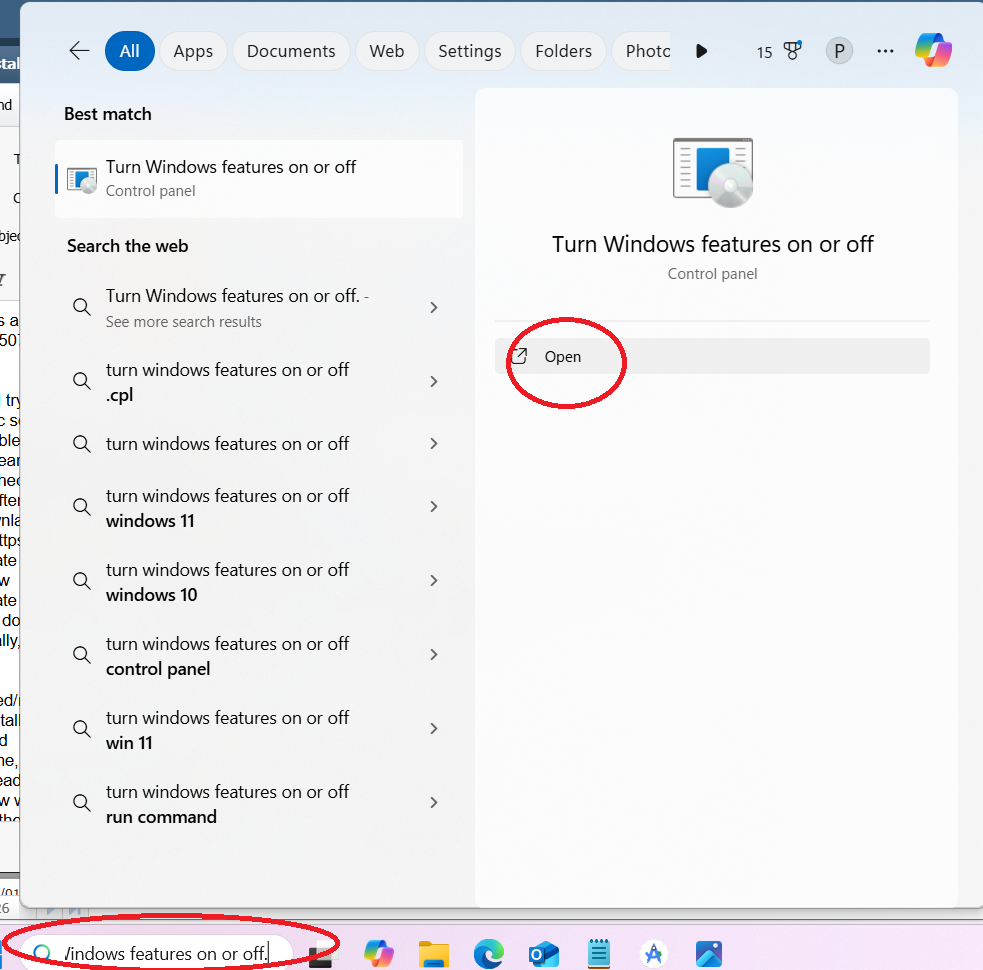
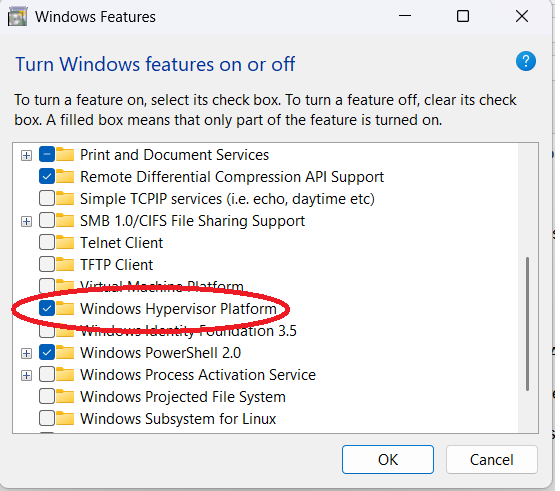
Note: after you try running an older app with .net 9.0, you may need to load .net 9.0 Here is a rough draft of the install cheat sheet - screen shots are also on grey usb in "android" folder with date of 20250708, we may use the ones already there too note links to codelabs if they need more info -- cheat sheet for Installation with screen shots search on "Turn Windows features on or off." and click open as shown sc1make sure "Windows Hypervisor Platform" is chosen sc2
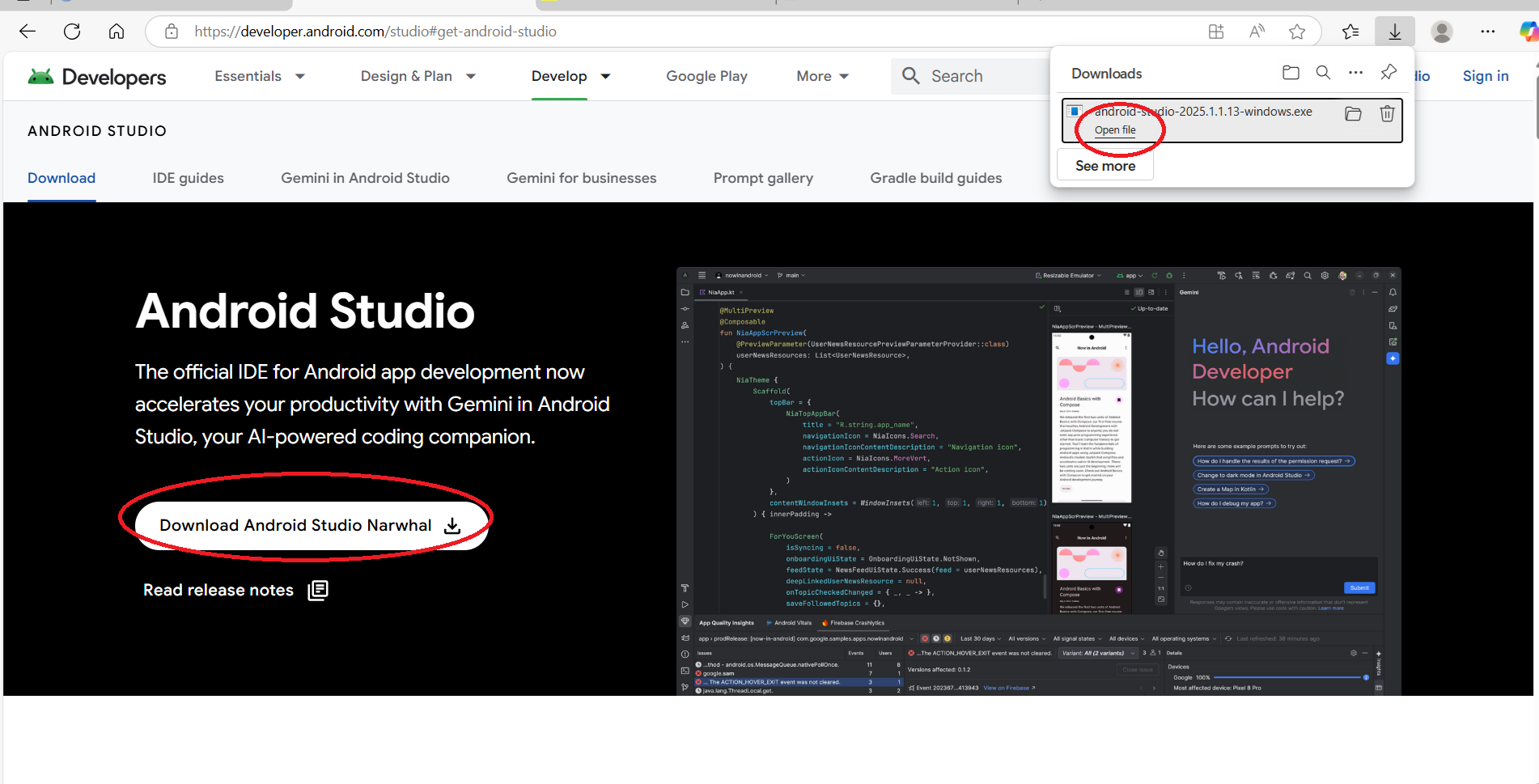
if it wasn't chosen originally, it will install and then you need to restart, otherwise just click ok now go to - https://developer.android.com/studio#get-android-studio and click on download button to download file, then either in downloads folder on browser or file explorer, run the .exe file you just downloaded sc3
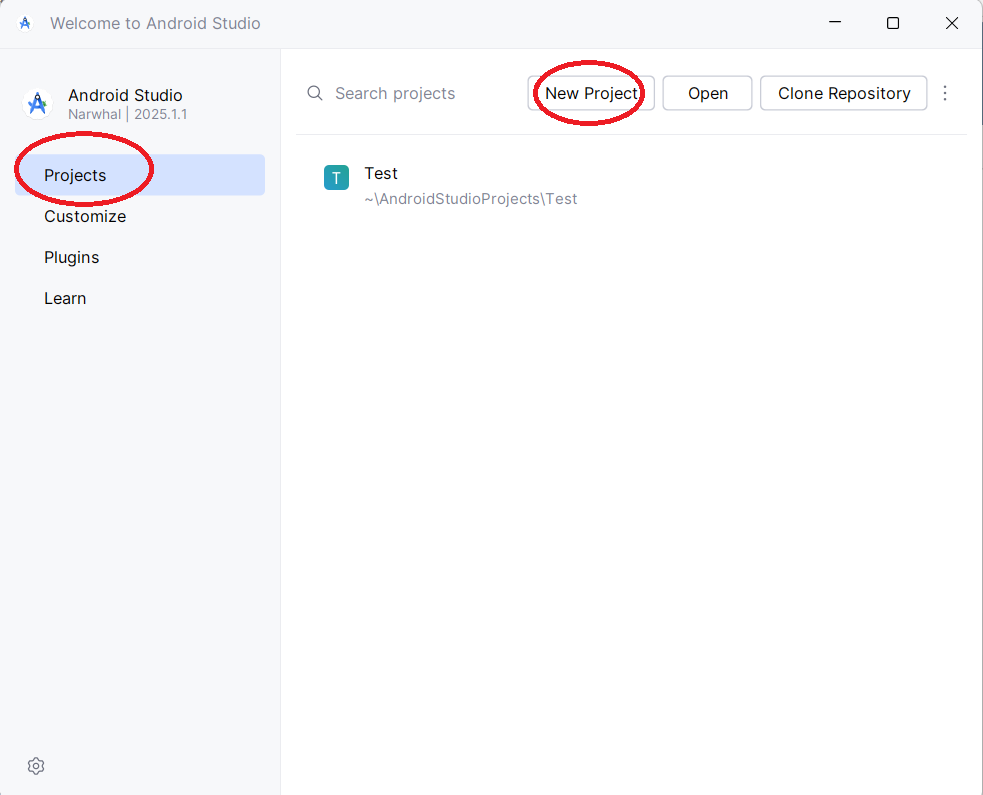
follow all defaults/prompts and say yes to any UAC prompts from Windows you should get the welcome screen, click on New Project (or if coming back, you will go to file, new project) sc4
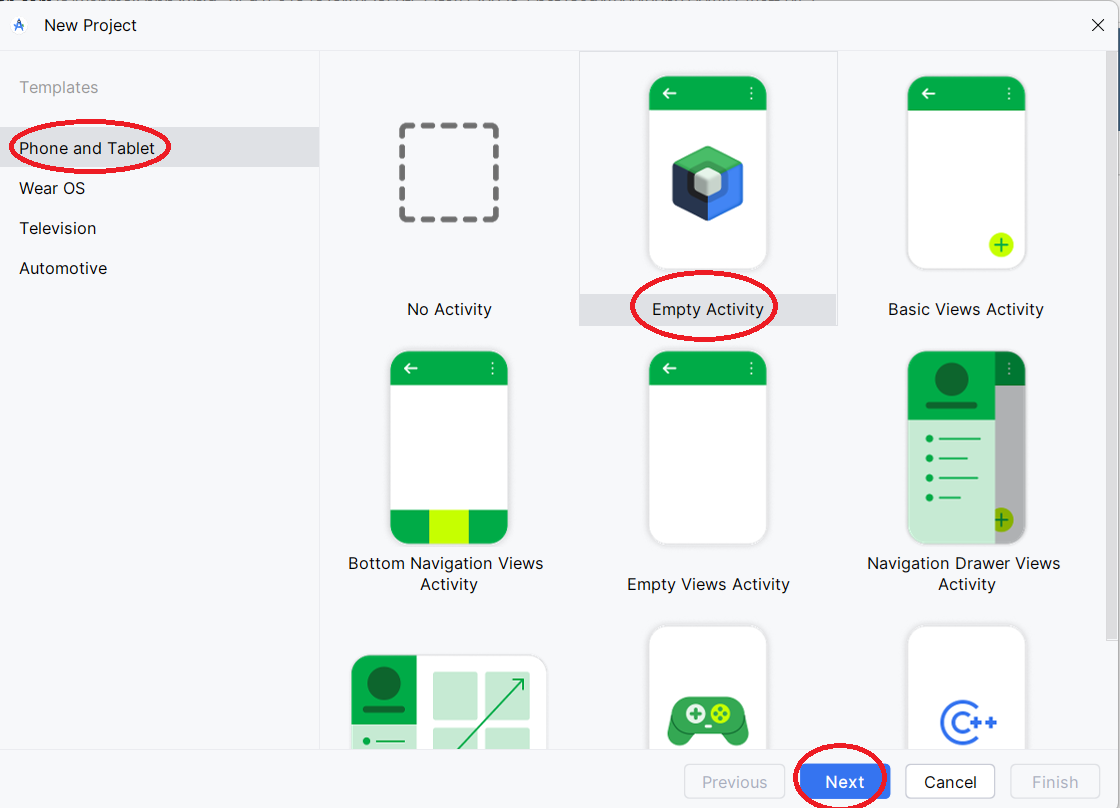
click on phone on left-hand side, empty activity, then Next sc5
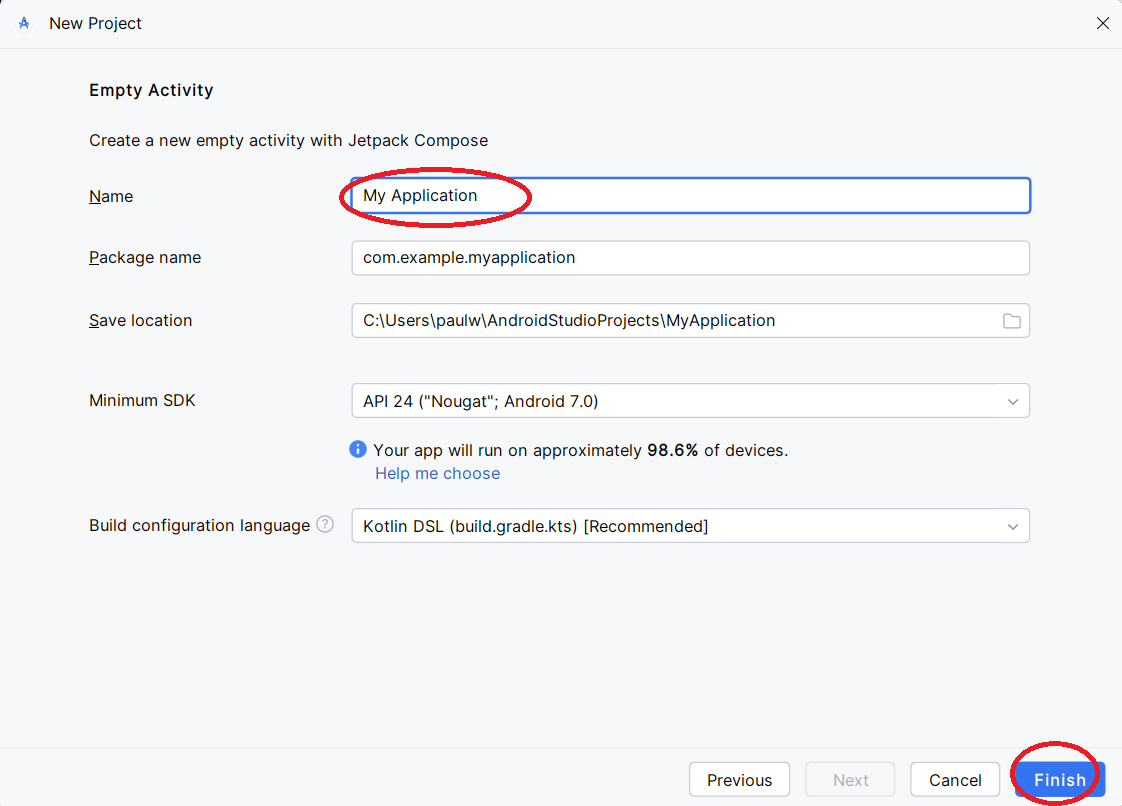
give it a name then click finish sc6
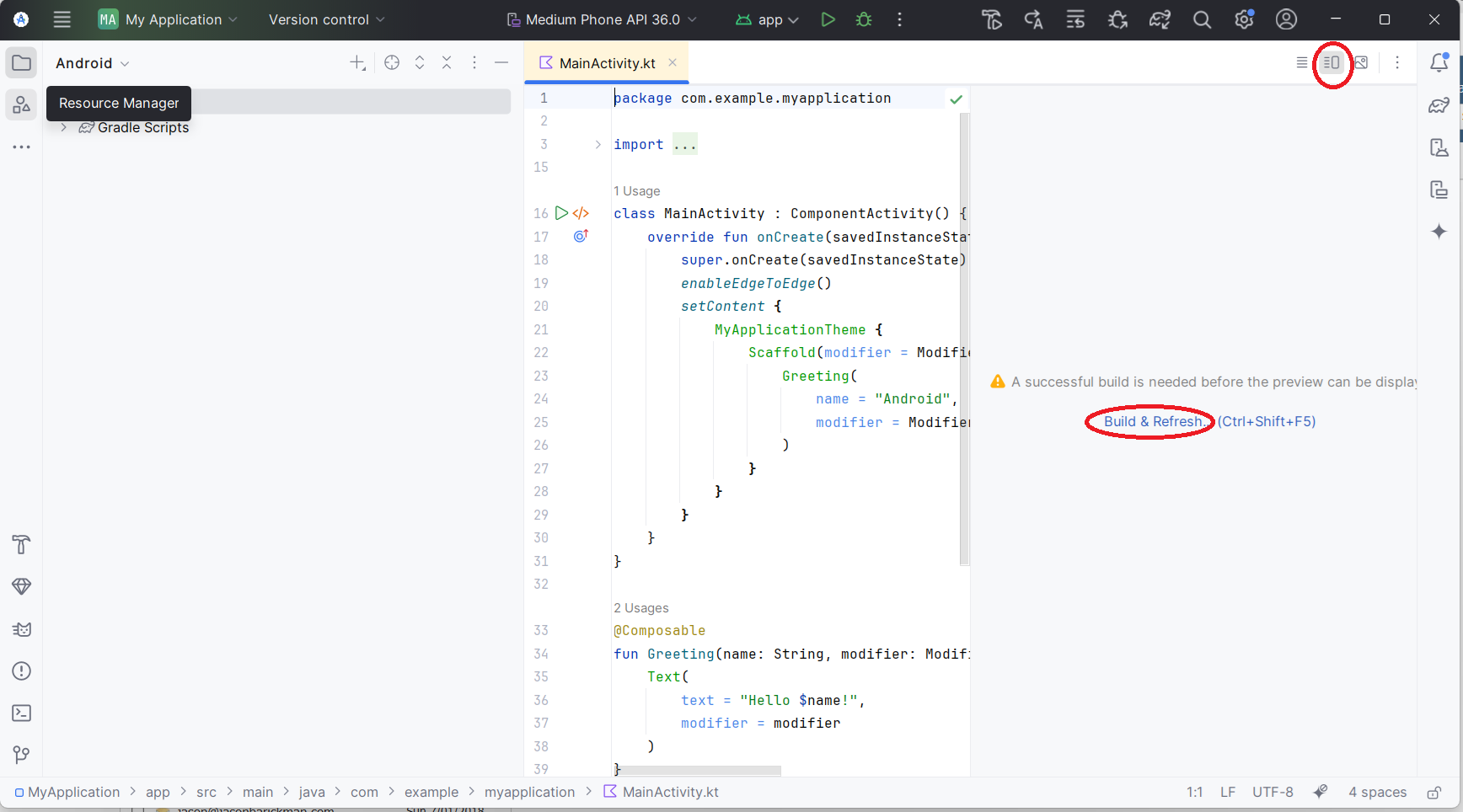
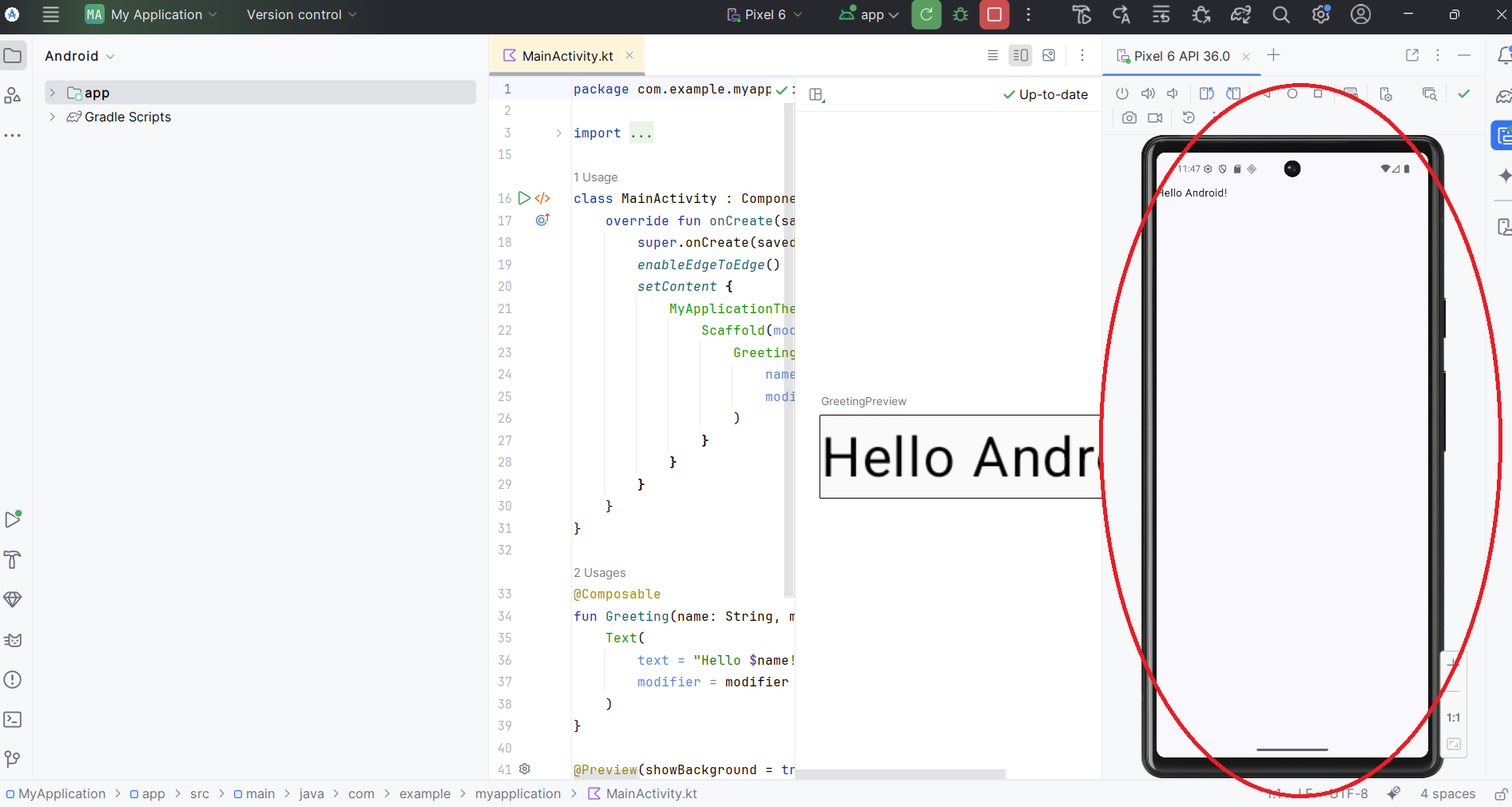
give it a few minutes (or a few more) click on split button first (at the top), then you will see Build and Refresh, then click on that note: if don't see split button, just enable k2 mode and let Android Studio restart sc7
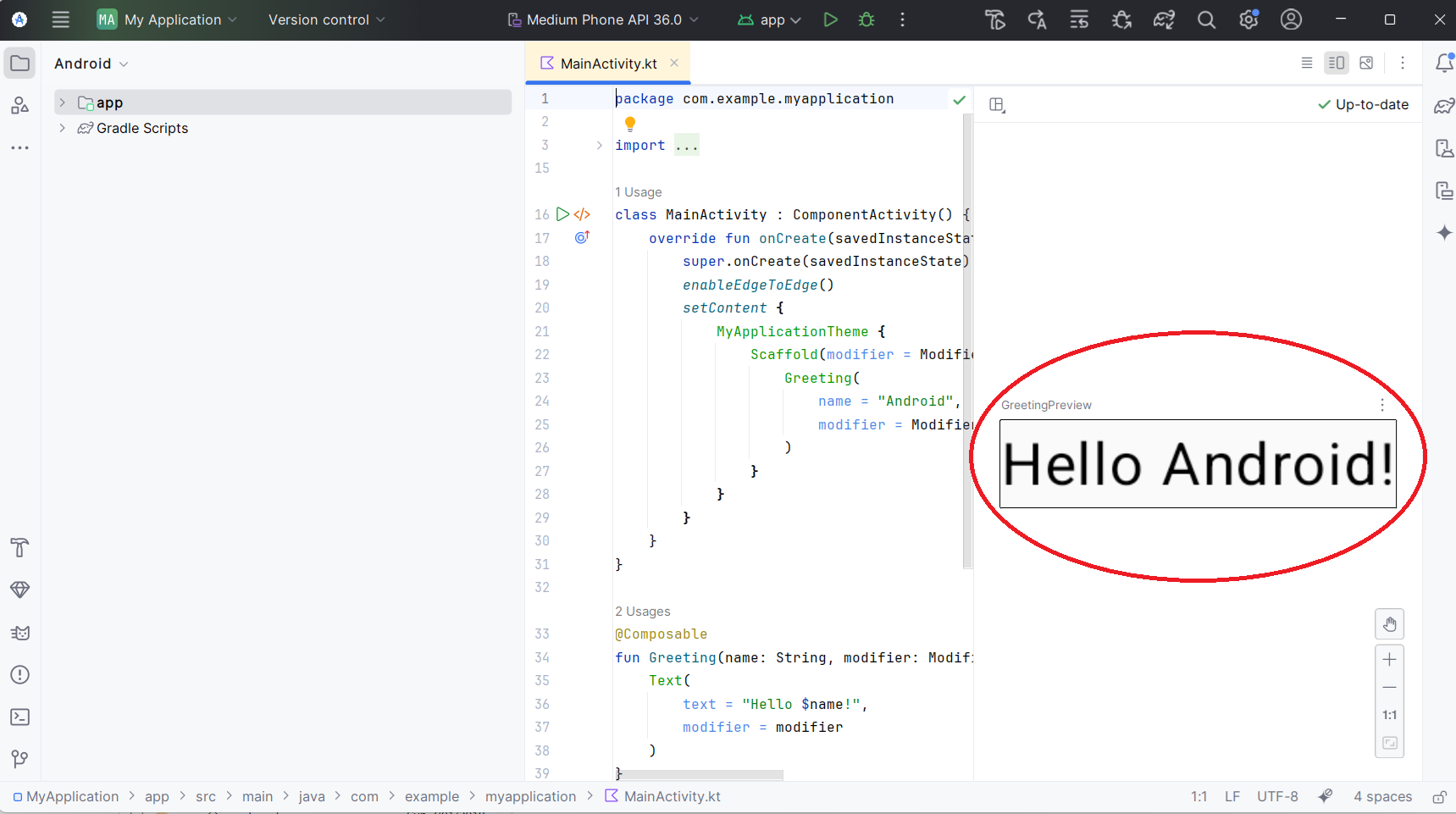
now you see the preview sc8
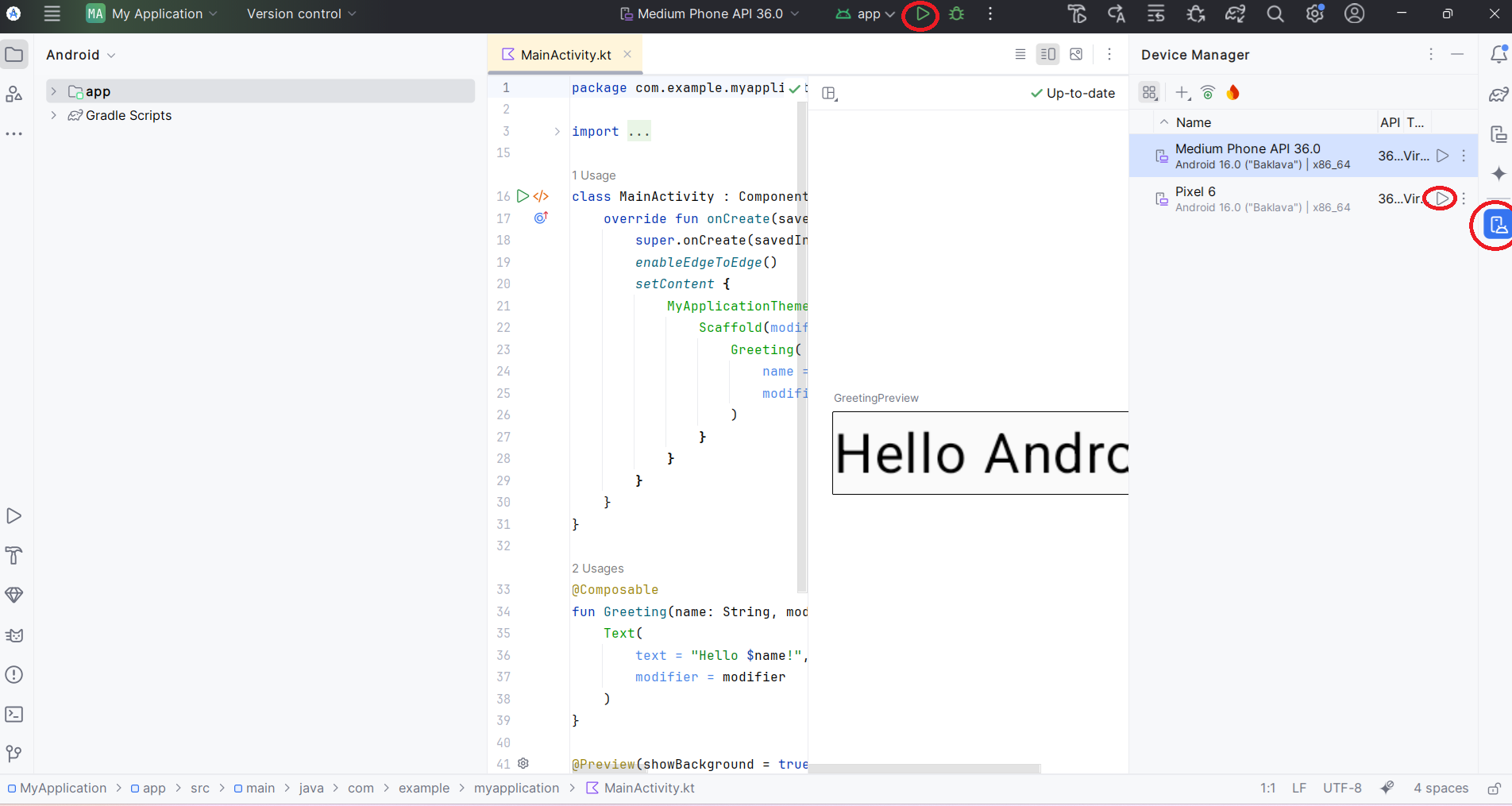
click on the device mgr button on right hand side (it may be in different order but still on the right hand side) sc9
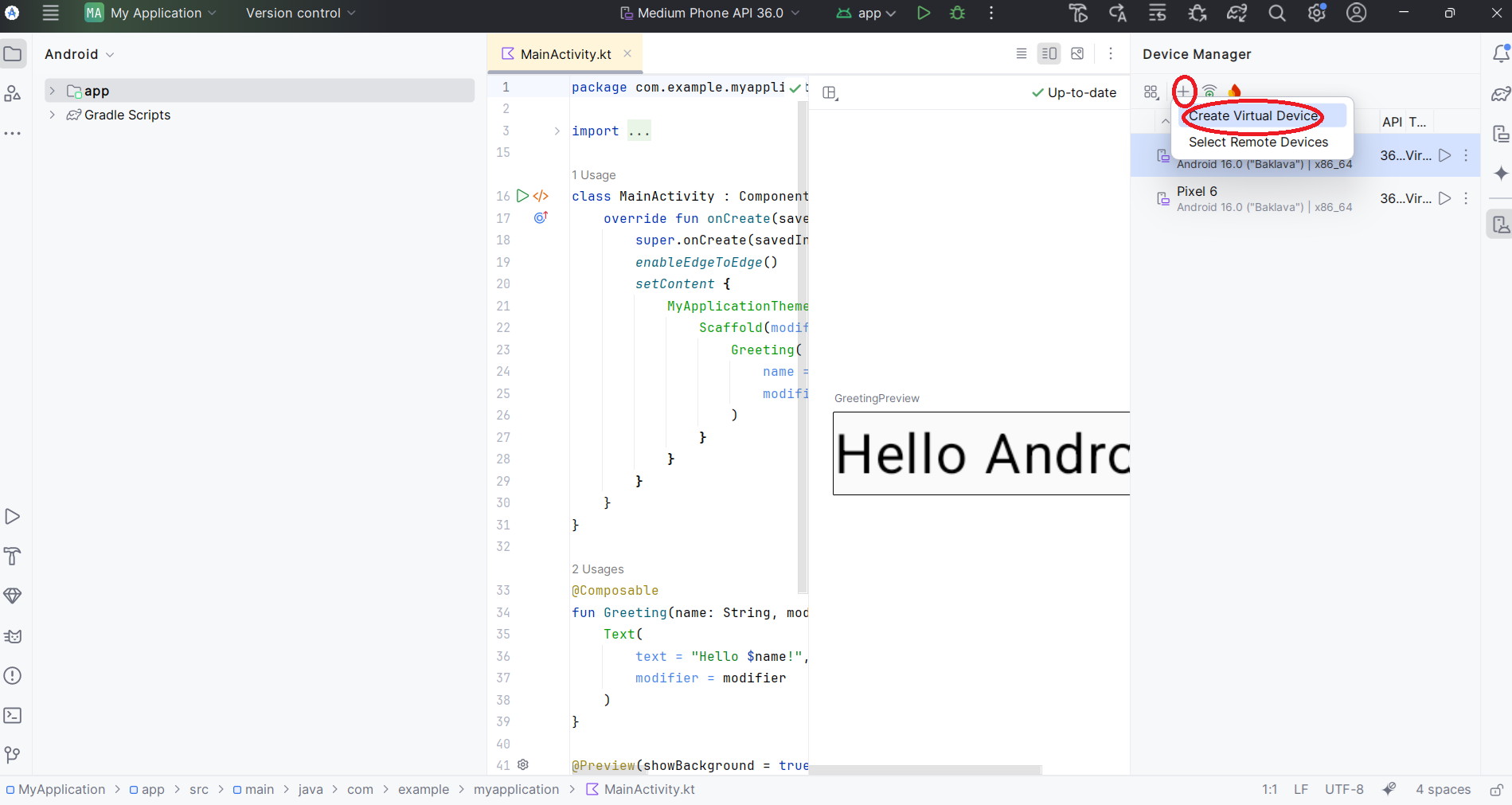
there is probably already a device installed, if there is not a device already installed or you want a different one in device mgr, click on plus sign, then Create Virtual Device sc10
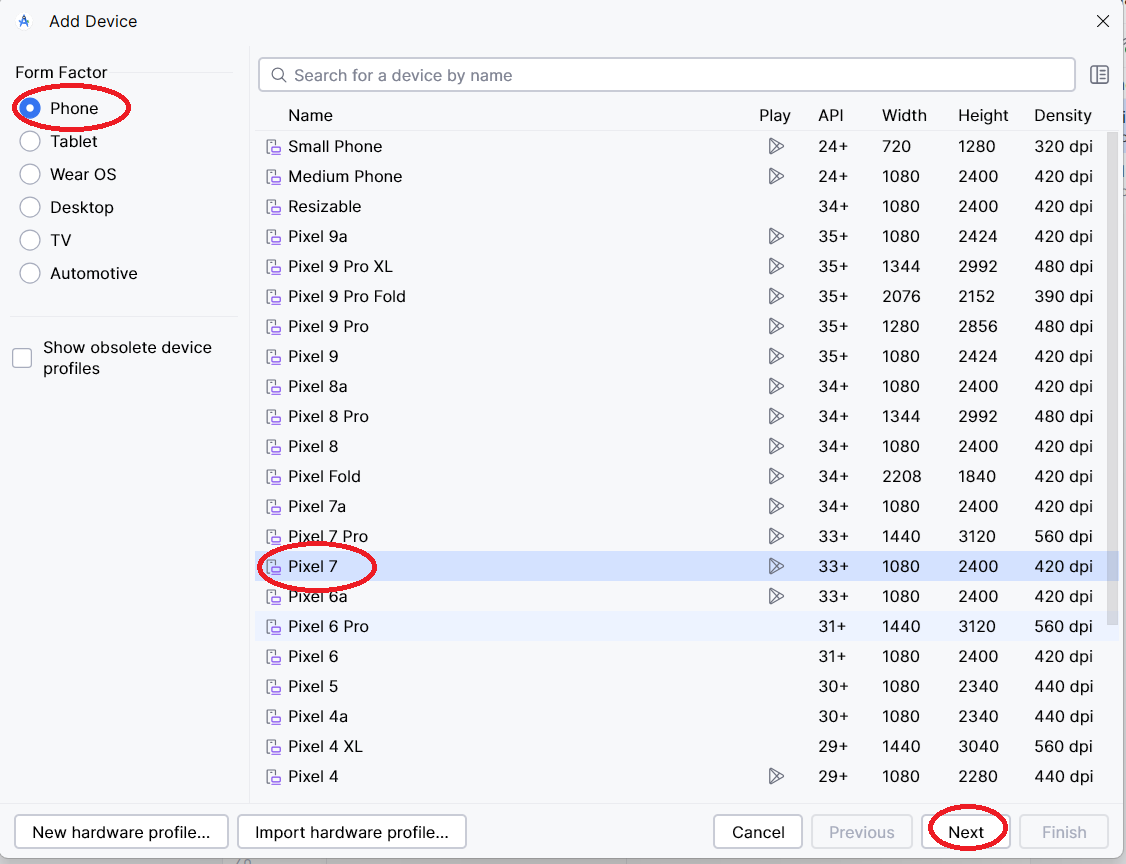
choose phone on left-hand side, then model on right, then click next sc11
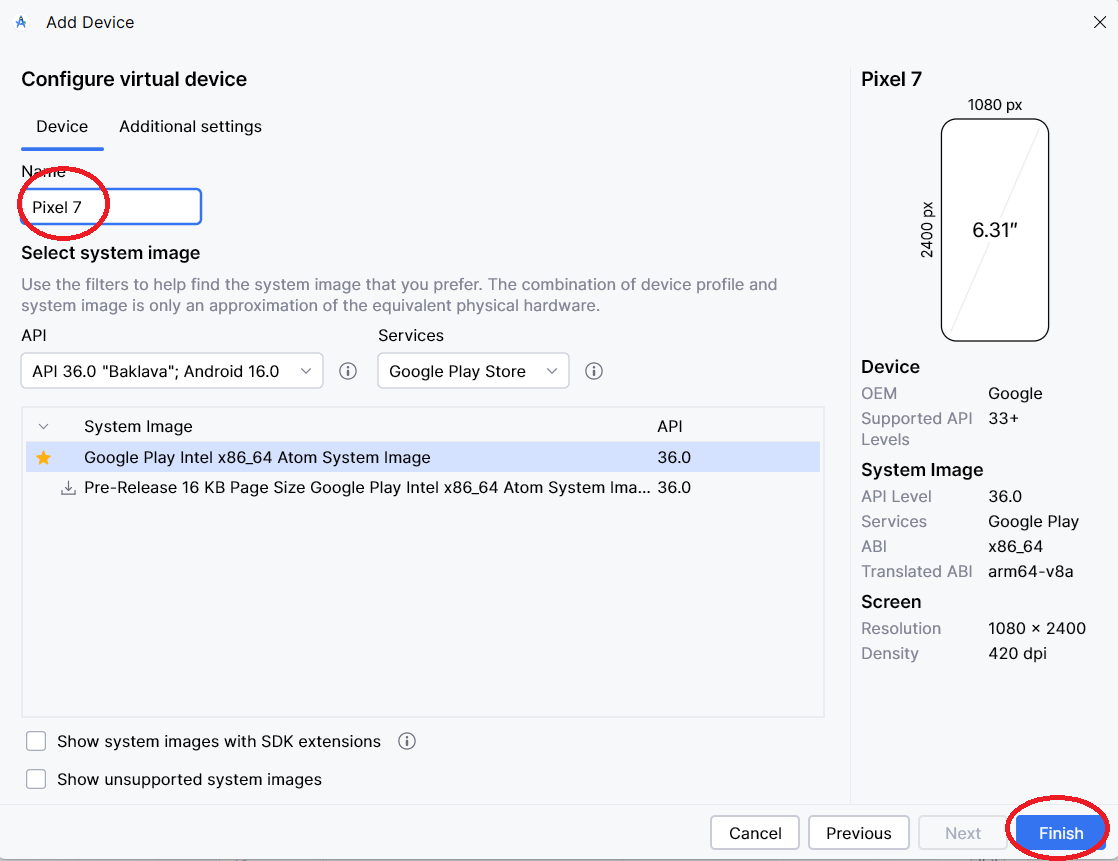
change name then click Finish (it may or may not warn you that is has to download a file) sc12
click on play button for the phone you want to run, in the device mgr list, then click run at top see sc9 above app is running in emulator sc13